Add Guest Messages from Reservation Presets for Groups
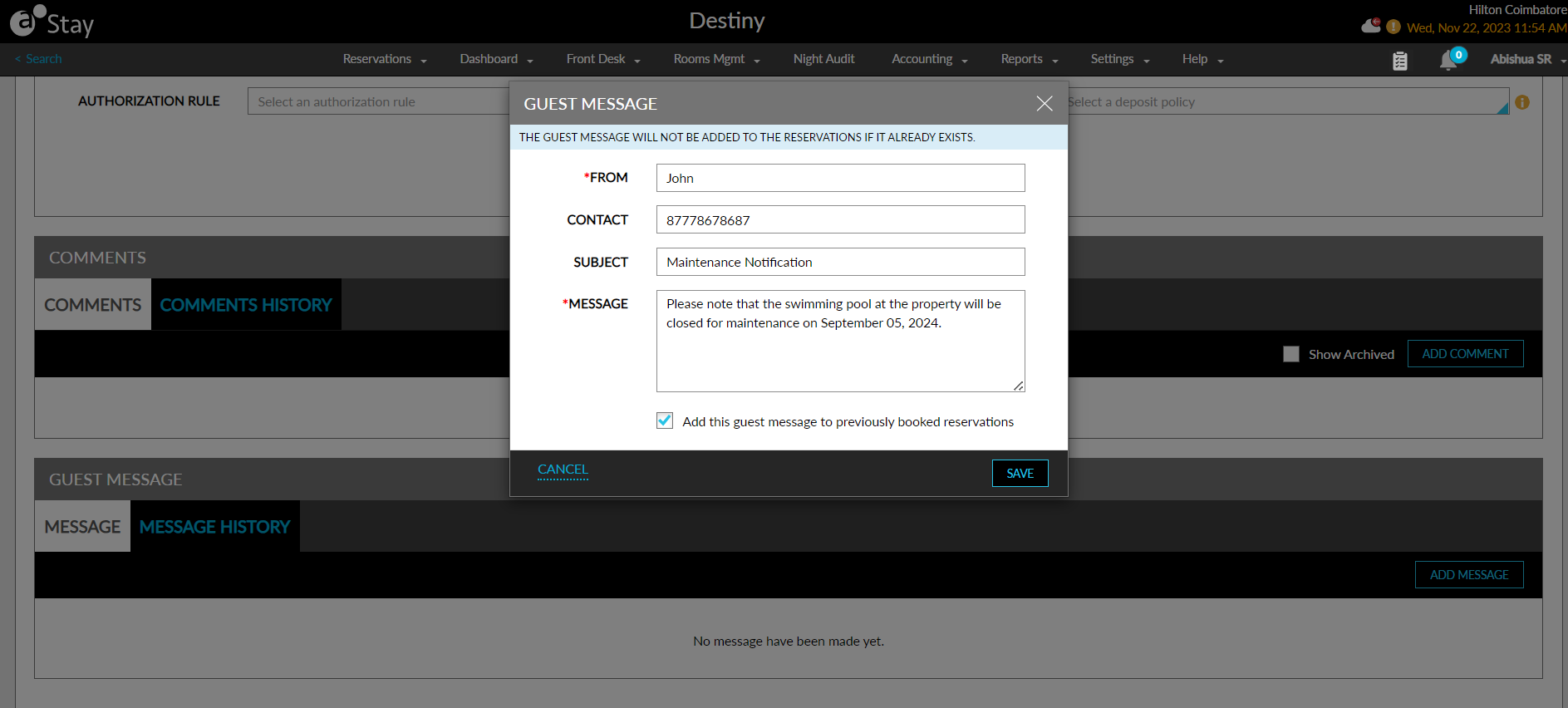
When the Batch Add Guest Message feature setting is enabled, the Guest Message section is displayed in the Reservation Presets tab of groups. When users click the Add Message button in the Message tab of the Guest Message section, the Guest Message pop-up screen appears that allows users to configure the message to be added to all future reservations created for the group.
When users select the Add this guest message to previously booked reservations checkbox, the guest message is added to all reservations previously booked for the group. When the message already exists for a previously booked reservation, the message, A message with the same subject already exists, will be displayed. When users click Save, the guest message will be saved and displayed in the Message tab of the Guest Message section.
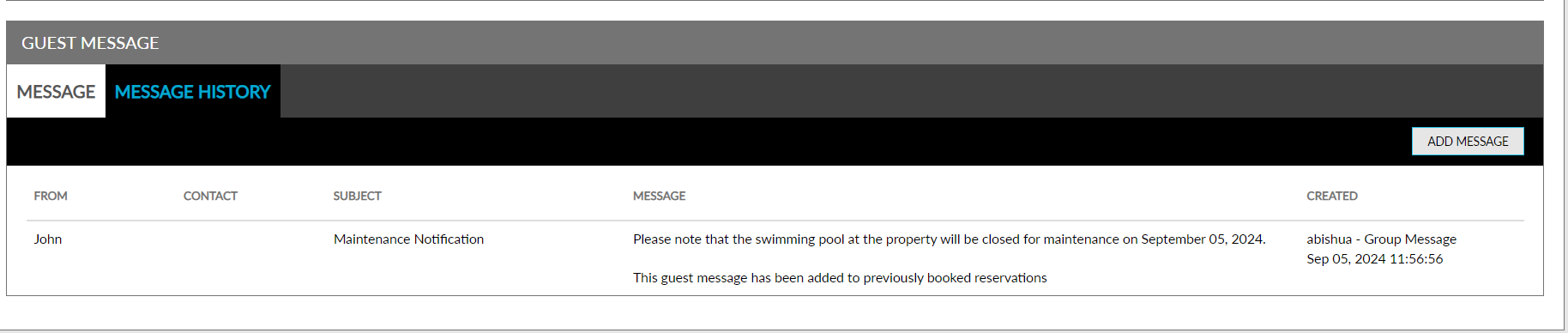
When a guest message is added, a record is created in the Message History tab that displays the username, date, and time when the message was added along with the message.